
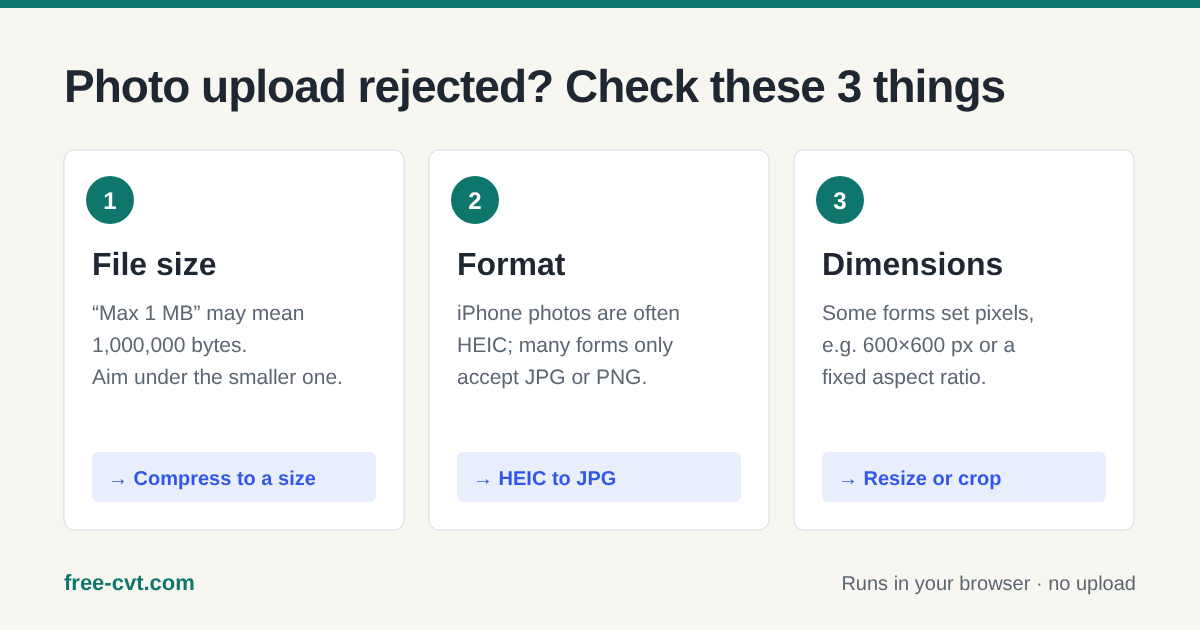
Most photo upload errors come from one of three limits. The file is too large: compress it below the limit, aiming under the decimal value such as 1,000,000 bytes for “1 MB”. The format is not accepted: convert HEIC or WEBP to JPG. The pixel dimensions are wrong: resize or crop to the required size.
Start with the error message
Upload forms rarely explain much, but their wording usually points to one cause. “File too large” or “exceeds the maximum size” means file size. “Invalid file type” or “unsupported format” means the format. Messages about pixels, width, height or “at least 600 × 600” mean dimensions.
If there is no message, check the file itself. On Windows, right-click the photo and open Properties: the General tab shows the size and the Details tab shows the dimensions. On a Mac, Preview's Tools › Show Inspector shows both, and on an iPhone, swiping up on a photo shows its format, megapixels and size.
Fix 1: the file is too large
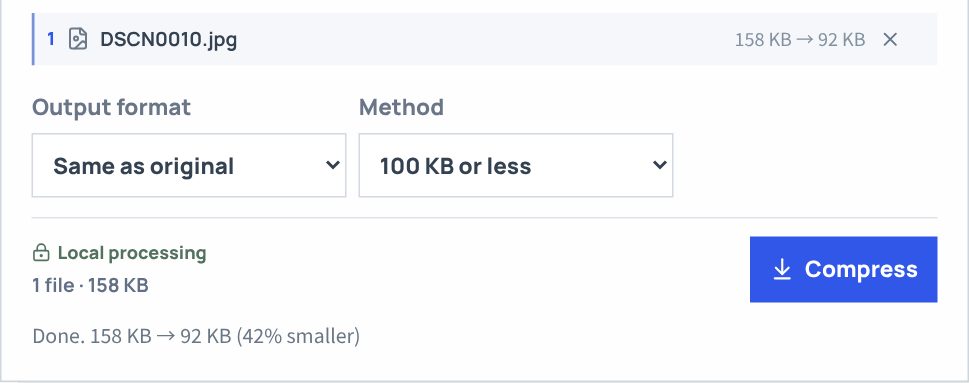
Sites do not agree on what “1 MB” means: some count 1,000,000 bytes and some 1,048,576. Aim under the smaller number and the file passes either way. Free CVT's target-size compression does this for you: 100 KB means 100,000 bytes and 1 MB means 1,000,000 bytes.
Choose a target such as 100 KB, 500 KB or 1 MB and the tool finds the highest JPG or WEBP quality that fits, reducing the resolution only if quality alone is not enough. In a test with a real 640 × 480 camera photo of 158 KB, the 100 KB target produced a 92 KB file at the original resolution.
Fix 2: the format is not accepted
iPhones save photos as HEIC by default, and many government, school and job sites only accept JPG or PNG. Images saved from websites are often WEBP, which older forms also refuse. The fix is to convert the file: HEIC to JPG for iPhone photos, and the image converter for WEBP or PNG to JPG.
Renaming photo.heic to photo.jpg does not work. It changes only the name, the data inside stays HEIC, and stricter sites detect that and reject the file. Convert it so the content really becomes a JPG.
Fix 3: the pixel dimensions are wrong
Dimensions are the width and height in pixels, which is different from file size: a 4000 × 3000 photo can be small on disk and still fail a “maximum 1200 pixels” rule. Free CVT's image resizer scales photos down by percentage or to fit a maximum width and height while keeping the proportions.
If a form needs an exact size such as 600 × 600, the photo first needs the same shape. Crop it to a square with the social media resizer's square preset (1080 × 1080), which lets you drag the frame over the part to keep, then scale that square down to 600 pixels with the image resizer.
Do the fixes in order and check the result
Convert the format first, then fix the dimensions, then compress. Each step changes the file size, so compressing last means the final file really meets the limit. Keep your original photo; none of these tools change it.
Before you upload, open the result and check that faces and text are still clear. If the photo will be posted publicly, consider removing its location data too: photos taken with location services on can contain GPS coordinates. Everything here runs in your browser, so your photos are not uploaded to Free CVT.
Quick answers
Why is my 1 MB photo rejected by a 1 MB limit?
The site probably counts 1 MB as 1,000,000 bytes while your file is between 1,000,000 and 1,048,576 bytes. Compress it to under 1,000,000 bytes and it passes both definitions.
Can I just rename a .heic file to .jpg?
No. Renaming changes only the file name; the data stays HEIC and many sites reject it. Convert it with a HEIC to JPG tool instead.
Does compressing a photo make it look worse?
Slightly, if quality has to drop. Target-size compression keeps the highest quality that fits the limit and reduces resolution only when needed, so check faces and text in the result.
Are my photos uploaded to Free CVT?
No. Compression, conversion and resizing run in your browser, and the files stay on your device.
Keep the original and check the content, size and format of the result.