
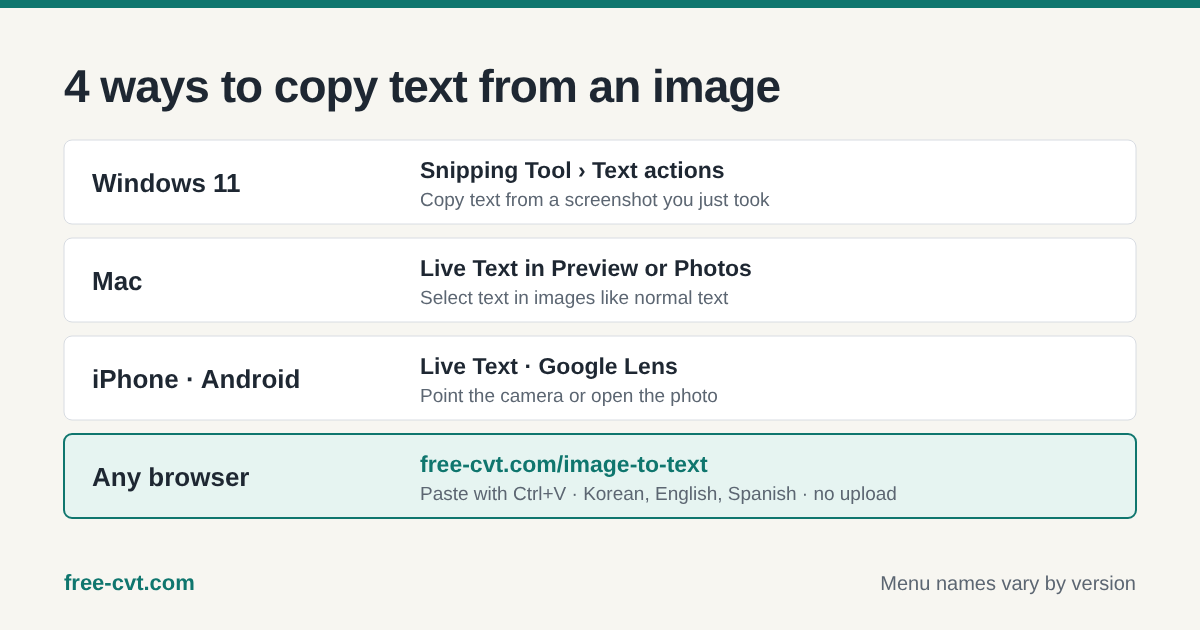
On Windows 11, use the Snipping Tool's Text actions. On a Mac, select the text with Live Text in Preview or Photos. On a phone, use Live Text on iPhone or Google Lens on Android. On any computer, a browser OCR tool such as free-cvt.com/image-to-text reads English, Spanish and Korean text from a pasted screenshot without uploading it.
Four ways to get text out of an image
Text in a screenshot, a scanned page or a photo of a receipt is just pixels until something recognizes it. That step is called OCR (optical character recognition), and most devices now have it built in.
Which one to use depends on where the image is. The built-in options are quickest on their own device; a browser tool helps when you are on a shared or locked-down computer, or need the same steps on every system.
Windows 11: Snipping Tool text actions
Press Windows + Shift + S, capture the area with text and open the capture in the Snipping Tool. In recent versions, the Text actions button highlights the text so you can copy part of it or all of it.
If you use Microsoft PowerToys, its Text Extractor (Windows + Shift + T by default) copies text from any area of the screen straight to the clipboard. Both use Windows' own text recognition, so the languages they read depend on the language packs installed.
Mac, iPhone and Android
On a Mac with macOS Monterey or later, Live Text lets you select text in images in Preview, Photos and Safari as if it were normal text. On recent iPhones, Live Text works the same way in the Photos and Camera apps: press and hold the text, or tap the text icon.
On Android, Google Lens, built into Google Photos and many camera apps, offers a Text option to select and copy what it finds. Lens may process images on Google's servers, so check its settings before using it on private documents.
In any browser: paste a screenshot
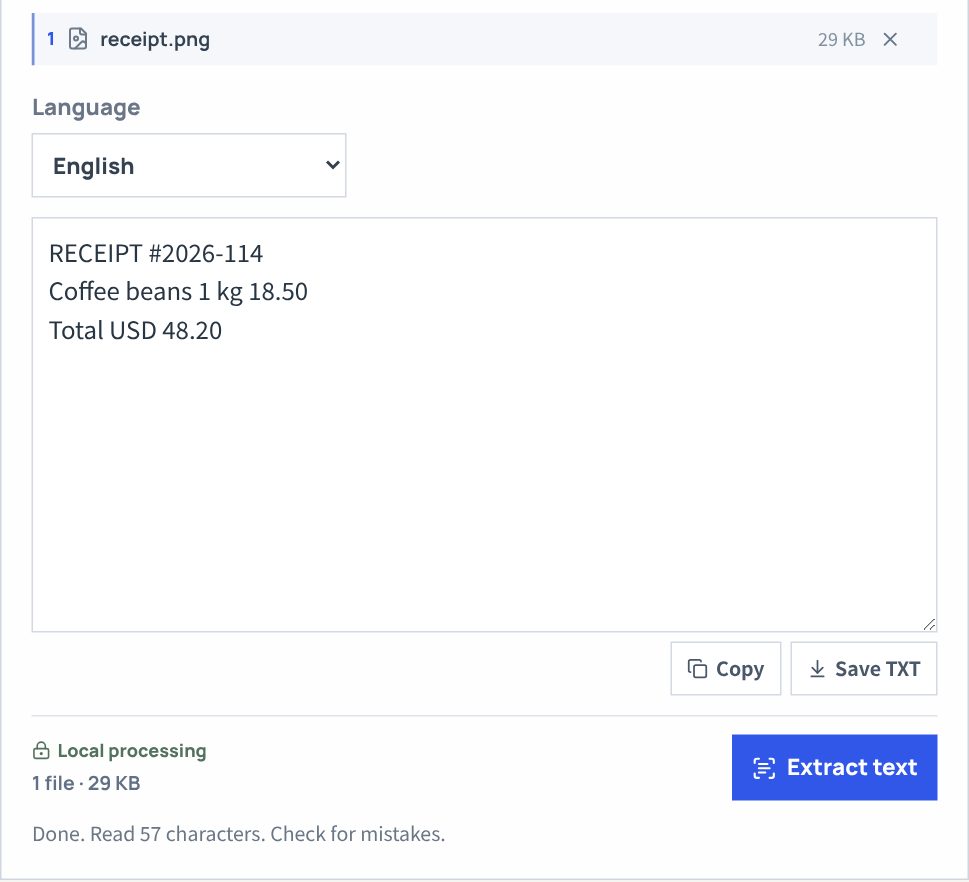
On free-cvt.com/image-to-text, take a screenshot and press Ctrl+V (Command+V on a Mac), or choose a JPG, PNG or WEBP file. Pick the language and press Extract text. You can edit the result, copy it or save it as a TXT file.
The recognition engine (Tesseract) and language data download from the site the first time, about 4 MB plus 3 MB for English, and then run in your browser, so the image is not uploaded. In our tests, an English and a Spanish receipt were read exactly, but in a Korean receipt the currency word after each amount was misread as an extra digit, a good reminder to check numbers.
How to get accurate text
OCR is only as good as the image. Use sharp, straight, well-lit images, zoom in before capturing small text, and crop to just the text you need. Handwriting, text over photos or patterns, and vertical text cause the most mistakes.
Always read the result once. Look for characters that look alike, such as 0 and O or 1 and l, and compare important values such as amounts, dates and account numbers with the original before you paste them anywhere.
Quick answers
Can OCR read handwriting?
Sometimes, but poorly. Tools like Tesseract are built for printed text; neat handwriting may partly work, but expect many errors and check every word.
What is the fastest way to copy text from a screenshot on Windows?
Take the screenshot with Windows + Shift + S, open it in the Snipping Tool and use Text actions, or use PowerToys Text Extractor (Windows + Shift + T).
Is the browser tool free and private?
Yes. Free CVT's image to text is free, needs no account, and recognizes text inside your browser without uploading the image.
Which languages does Free CVT recognize?
English, Spanish and Korean, alone or combined with English. Pick the language that matches the image for the best accuracy.
Keep the original and check the content, size and format of the result.