
To sign a PDF without printing, place an image of your signature on it. You can use Fill & Sign in the free Adobe Acrobat Reader, Markup › Sign in Mac Preview, or a browser tool such as free-cvt.com/pdf-sign, which lets you draw or upload a signature and saves the PDF without uploading it. If the recipient requires a certificate-based digital signature, use an e-signature service instead.
Image signature or digital signature?
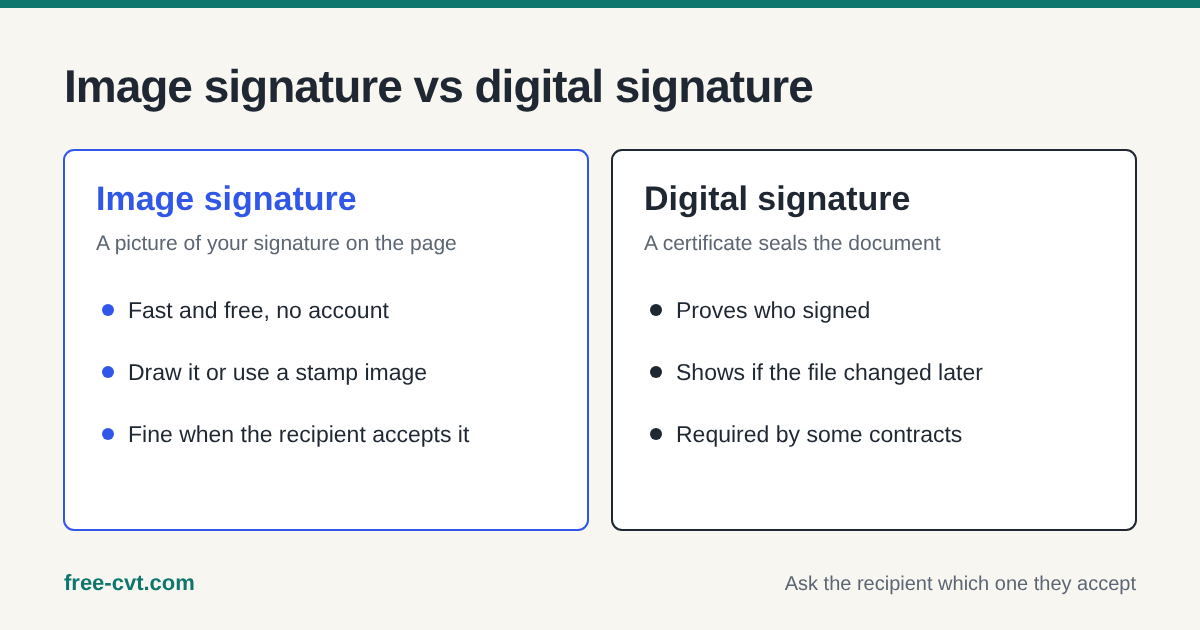
Most “sign and send back” requests only need your signature to appear on the page. That is an image signature: a picture of your handwritten signature placed on the PDF. It is quick, free and needs no account.
A digital signature is different. It seals the document with a certificate that proves who signed and shows whether the file changed afterwards. Some contracts and institutions require it, so if you are unsure, ask the recipient which kind they accept.
Option 1: Adobe Acrobat Reader
The free Acrobat Reader for Windows and Mac has a Fill & Sign tool. Open the PDF, choose Fill & Sign, then Sign › Add signature, and type, draw or upload your signature. Click where it should go, then save.
It works well if you already have Reader installed. It is a desktop app, though, and some features may ask you to sign in to an Adobe account.
Option 2: Preview on a Mac
Macs can sign PDFs without extra software. Open the PDF in Preview, show the Markup toolbar and click Sign. You can create a signature with the trackpad, the camera (sign on white paper and hold it up) or a nearby iPhone.
Place the signature, resize it with its handles, and save. The signature is stored on your Mac for next time.
Option 3: In your browser with Free CVT
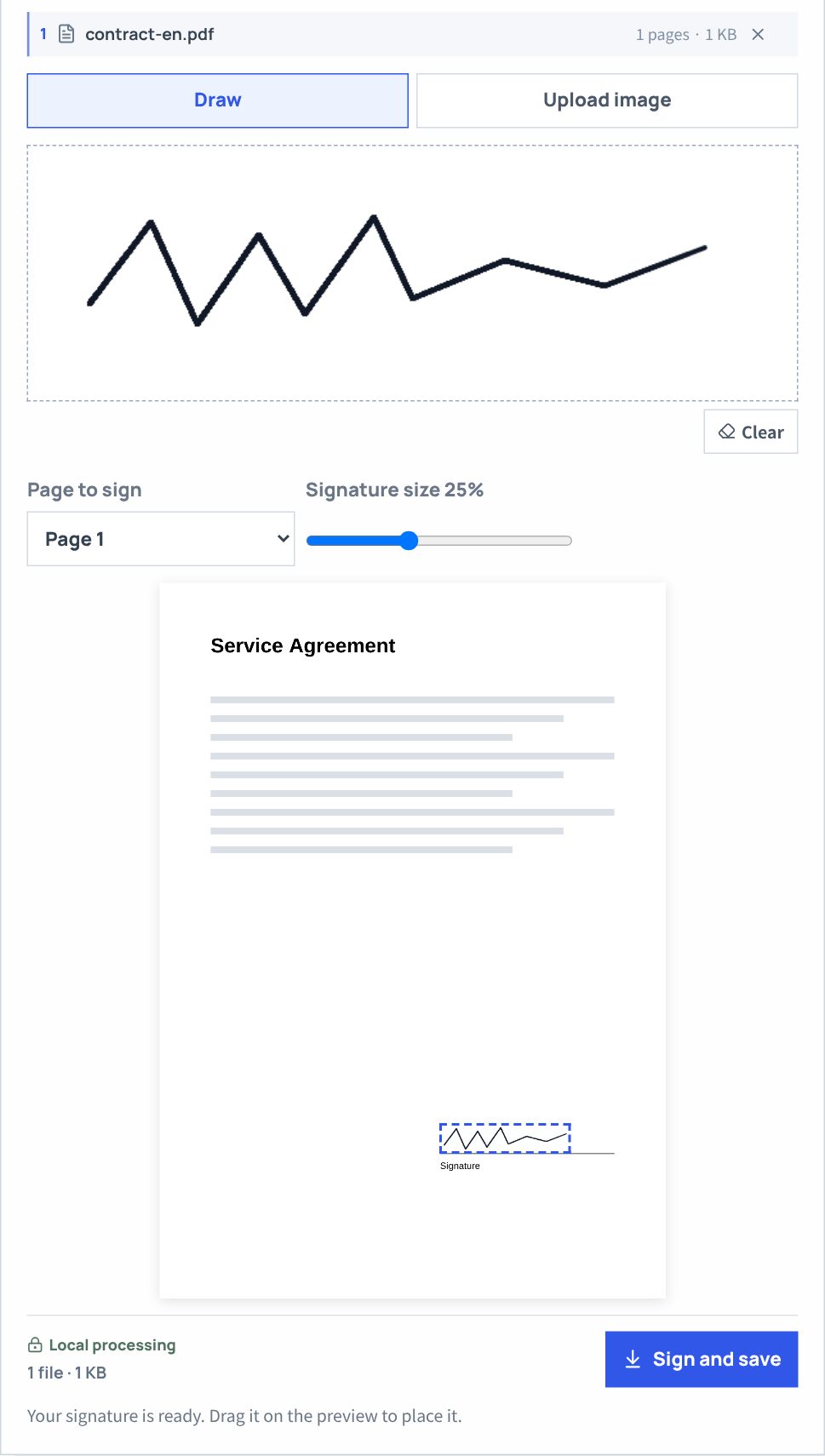
On free-cvt.com/pdf-sign, choose your PDF (up to 50 MB), then draw your signature with a mouse or finger or upload a PNG or JPG of a signature or stamp. A drawn signature is trimmed to its ink automatically. Pick the page, drag the signature onto the line and adjust its size from 5% to 60% of the page width.
Save, and you get a copy named “filename-signed.pdf”; the original is untouched. Everything happens in your browser, so the document is not uploaded. In a test, a signature placed on page 2 of a two-page file landed exactly where it was dropped, with page 1 unchanged.
Before you send it
Open the signed file and check the page, the position and the size. Password-protected PDFs may not open in browser tools until the password is removed, and Free CVT currently refuses pages that are rotated inside the PDF, asking you to choose another page.
Keep the unsigned original in case you need to sign again. If you need to add a date or typed text as well, Acrobat Reader and Preview both have text tools; Free CVT only places the signature image.
Quick answers
Is a signature image legally valid?
It depends on the country, the type of document and what the recipient accepts. Many accept image signatures for everyday forms, while some contracts require a certificate-based digital signature. Ask the recipient if you are unsure.
Can I sign a PDF on my phone?
Yes. Free CVT's Sign a PDF works in mobile browsers, and you can draw the signature with your finger.
Is my PDF uploaded anywhere?
Not with Free CVT: the preview and the saved file are both made inside your browser. Desktop apps such as Acrobat Reader and Preview also work on your device.
Can I add a stamp instead of a signature?
Yes. Upload a PNG or JPG of the stamp. A PNG with a transparent background overlaps text naturally, while a white-background JPG can cover text, so place it on an empty area.
Keep the original and check the content, size and format of the result.